

How toInstall TeeRoster
Add TeeRoster to your home screen so it opens like a real app — straight to your login, ready to book in seconds.
Start from the Sign In page
Your phone saves whatever page you’re on when you tap “Add to Home Screen.” Open the Sign In page first — that way your TeeRoster icon always opens right to login, so you’re one tap from booking.
iPhone Web App
Safari
- 1Open this site in Safari, then tap the Sign In button below to open the login page.
- 2Tap the Share icon in the bottom toolbar.
- 3Scroll down and tap “Add to Home Screen” .
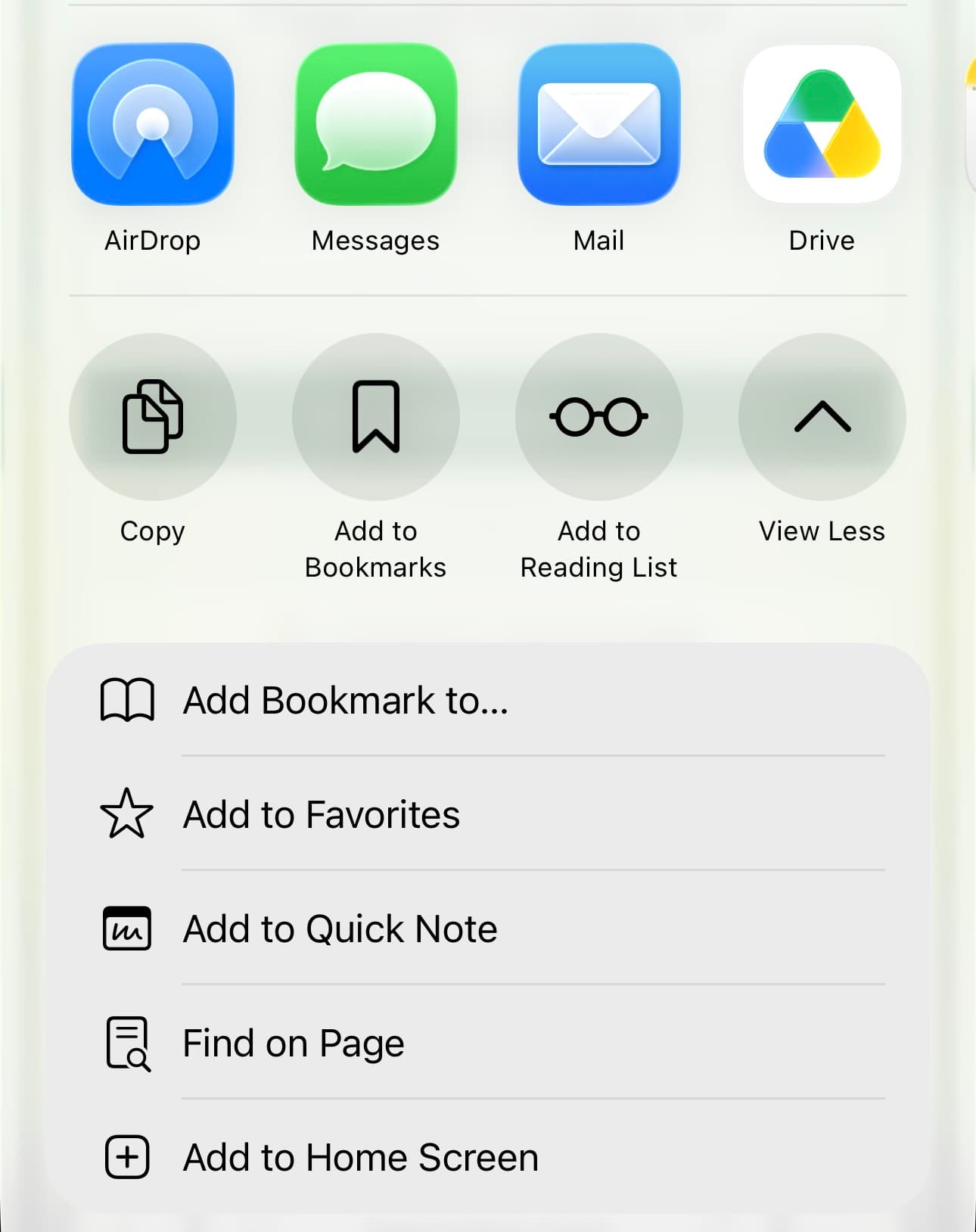
- 4Name it “TeeRoster” and tap Add. The icon now opens straight to your login screen.
Browser
Chrome / Edge
- 1Open the Sign In page in Chrome or Edge.
- 2Look for the install icon (a monitor with a down-arrow) at the right end of the address bar.
- 3Click it, then click Install. TeeRoster opens in its own window.
- 4Pin it to your taskbar or dock for one-click access to login.
The fastest way to get on the course
One tap to the tee sheet
Launch straight from your home screen — no browser, no typing the address, no hunting for the tab.
Lands on login
Because you add it from the Sign In page, the icon opens there every time — sign in and you’re booking in seconds.
Push notifications
Installed TeeRoster can alert you about tee-time confirmations, invites, and waitlist openings.
Full-screen app feel
Runs in its own window without browser chrome, so it looks and feels like a native golf app.
Ready to add it?
Open the Sign In page, then follow the steps above for your device. It takes about ten seconds.